
You can quickly merge several documents into a single PDF file, with the documents appearing in the order you choose.
- Prepare the documents locally
- Make sure you have made final edits and saved the files you want to combine.
- If the documents are in iManage they will need to be exported first
- Select the documents in the local save location

- Right-Click and select "Combine supported files in Acrobat"

- Arrange the files (optional)
In the Combine Files dialog box, rearrange the files so that they are listed in the order you want them to appear in the final PDF file.
You can drag a file to its new location, or select it and click Move Up or Move Down until it is in the proper place.
TIP: If you want to include only some of the pages in a document, select it and click Choose Pages. Then, select the pages you want to include. - Click on "Combine Files"
Acrobat converts any files that are not already PDF files, and then combines them into a single PDF file.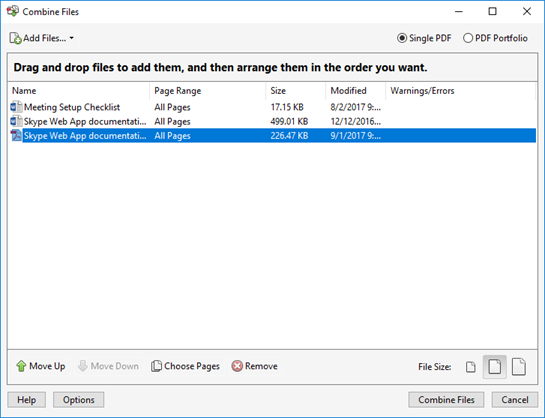
When prompted, name the resulting PDF file and select a location for it.
Comments